
Choose a reported browser route
R3APER_PL’s r/SteamDeck post and replies, read October 28, describe these routes. They omit the game build and Deck hardware revision. The two routes come from different users in one thread, not independent benchmark datasets.[1]
| Route | Reported sequence | Before committing |
|---|---|---|
| Brave / R3APER_PL | Install Brave in Desktop Mode, add it to Steam, return to Gaming Mode and open pokebonk.com in kiosk mode. | Verify the browser opens normally first. Keep its existing launcher command; the post’s Flatpak command is specific to that installation. |
| Heroic / another commenter | Install Heroic, add a URL entry, first open it in Desktop Mode to log in, then try Gaming Mode. | Treat this as a reported alternative. We have not verified Heroic’s current URL-entry UI or session transfer. |
Open pokebonk.com — original browser game ↗ (external website, opens in a new tab) first. No ROM, Megabonk mod or Windows game executable is part of the original browser route.[2]
Map the actions before a long run
The OP maps movement to WASD, camera to mouse, A to E, X to R, a trigger to Space and other buttons to clicks or scrolling. Use that as a starting layout, then add missing actions rather than copying it as a complete preset.
| Action to keep reachable | Keyboard layout target | Check |
|---|---|---|
| Movement / camera | WASD / mouse | Move and turn together, then release both; movement should stop. |
| Jump / slide | Space / Left Shift | The reported layout lacks an explicit slide binding; assign one if using keyboard emulation. |
| Interact / Ultimate | E / R | Test a prompt and Ultimate availability separately. |
| Map / pause menu | M / P | Keep menu navigation and a way back to Steam accessible. |
Those keyboard defaults come from the v0.8.55 public client. If using native gamepad input, inspect the game’s own bindings instead of layering the same action through both schemes. The current menu and any saved rebinding take priority.[3]
If movement sticks while the camera turns
The OP reports continued movement until the analog stick is moved in that direction again. A second participant also asks about this symptom; a reply suggests Heroic/Gaming Mode, but the OP says Brave in Gaming Mode still shows it. The thread therefore does not establish a universal fix.[1]
- In a low-risk area, check movement alone, camera alone, then both together.
- Record whether your layout emits gamepad input, keyboard/mouse input or both. Temporarily compare one input scheme at a time.
- Check whether the same profile behaves differently in Desktop Mode and Gaming Mode. Change one setting at a time.
- If the issue remains, report browser, launcher, game version, input layout and the exact reproduction sequence.
These are diagnostic comparisons, not confirmed repairs. Do not erase site data to troubleshoot a directional input problem.
Preserve the browser profile and set expectations
A new launcher or browser can have a separate session. Keep the working profile until you confirm access to the same game account. The original policy describes local session storage and deletion of inactive Guests after 60 days; it does not promise that different launchers share credentials.[2]
Two users in the thread describe playing on Deck, but no reproducible FPS, battery, full-run or co-op measurements are supplied. We did not test a physical Deck. The original entry is v0.8.62 on October 28; the source for the action table is explicitly v0.8.55.
Choose the original app or the browser before remapping
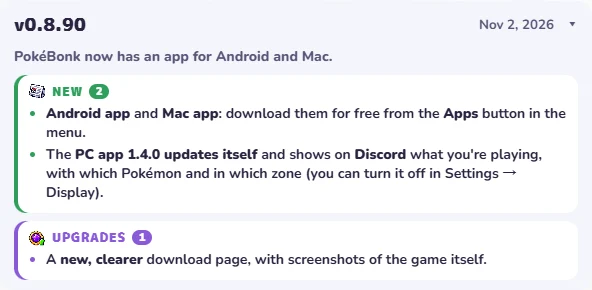
The original project now offers PC apps. Its current Apps text lists Linux, and the v0.8.81 release names Steam Deck support. Open the original Apps menu to inspect the current package and instructions. The browser routes above remain historical community alternatives.
- Record whether you launched a browser, the original Linux app or an independent package.
- If startup fails, record the app version, system and exact error before applying a community command.
- If the menu opens but movement sticks, compare one input scheme at a time: native gamepad or deliberate keyboard/mouse emulation. Keep saved bindings and Steam Input in the report.
- Keep the working browser identity until the new route shows the intended original account.
We did not install an AppImage or test a physical Deck. No FPS, battery, universal startup command or browser-to-app transfer result is promised.
Sources & checks
November 6 check: original release history v0.8.77–v0.9.14. Described fixes were not reproduced; apps, recovery and multiplayer were not tested. Original project release notes ↗ (external website, opens in a new tab)
Setup reports come from one Reddit thread; controls come from the dated original client.
- Reddit r/SteamDeck — R3APER_PL and replies ↗ (external website, opens in a new tab) · Brave/Heroic setup reports and stuck-input complaints, 28 Oct 2026; device/build unspecified.
- pokebonk.com — project legal notice ↗ (external website, opens in a new tab) · Browser distribution and account policy, 28 Oct 2026.
- PokeBonk client ↗ (external website, opens in a new tab) · Action controls, v0.8.55, 26 Oct 2026.