Choose a device before moving your save
The original device FAQ ↗ (opens in a new tab) describes mobile support as limited. Android is the more promising phone route. For an iPhone, the FAQ reports that Safari fails to load and that Brave may load without fullscreen. These are the project’s compatibility notes, checked 9 November 2026. Our browser inspection used a desktop environment, so physical-phone performance remains untested.
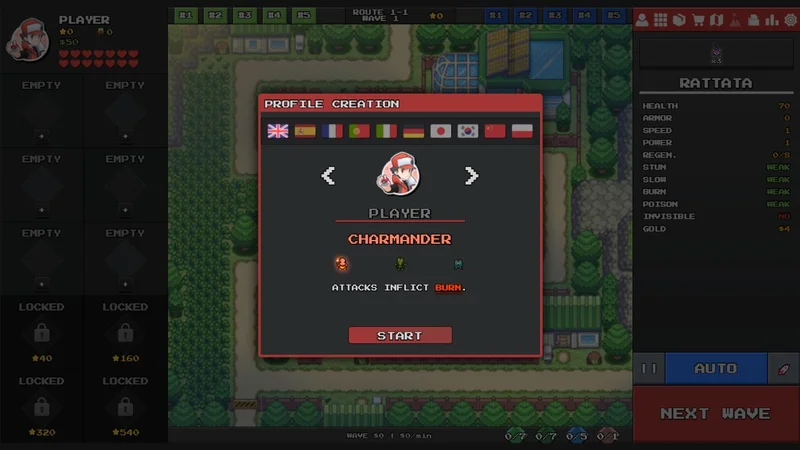
Open the original play page ↗ (opens in a new tab) first and confirm that profile creation or your existing game loads. Keep the source device available until your imported team and route progress are visible on the destination.
Move a save in a controlled order
- On the device with the progress you want, open Settings → Data → Export data → Download.
- Keep the downloaded .txt file. Check that the download actually appeared before leaving the old browser.
- If the destination already has progress worth keeping, export that save as a separate backup too.
- On the destination, use Settings → Data → Import data → Upload .txt → Load save.
- Compare the team and route progress with the source before starting a longer session.
Export and import controls follow the original FAQ. Its play page states that browser progress is stored locally and can be lost after changing browsers, devices or clearing browsing data. A downloaded backup gives you a transfer file you can retain outside that browser.
When loading or transfer fails
- Blank screen on Safari. Compare the symptom with the project’s iOS warning. Try the documented alternate browser or use a computer, keeping the source save intact.
- Another browser starts a fresh profile. Return to the browser that holds your progress and export from there. Changing browsers does not automatically move local storage.
- No downloaded file appears. Inspect your browser’s downloads before attempting an import. Repeating a short identifier in the import field cannot replace a missing save file.
- A guide asks for a cloud account. Check its host and edition. Some third-party hosts add their own cloud features. The original play page documents local browser saves.
A community save discussion ↗ (new tab) includes a phone player reporting an invalid code and a failed download. That report establishes a failure symptom, with the device and build unresolved. Use the original file-transfer instructions and confirm each stage.
Continue after the save is visible
Keep a fresh exported copy after important progress. For the next battle, use the team-role guide. If you have reached the World 1 graveyard route, use the Lunala checks. Reward redemption uses a separate field explained in the code guide.