
From the original page to a run
Need a route into the game? Check the third-party edition → or find the original Windows download →. The steps below describe the original host; check the edition before following them.
- Open Aethus’s original game ↗ (external website, opens in a new tab). Keep this guide in a separate tab. The original does not run inside this website.
- Allow the initial game-data download to finish. A loading bar is different from a WebGPU warning or a server quota message.
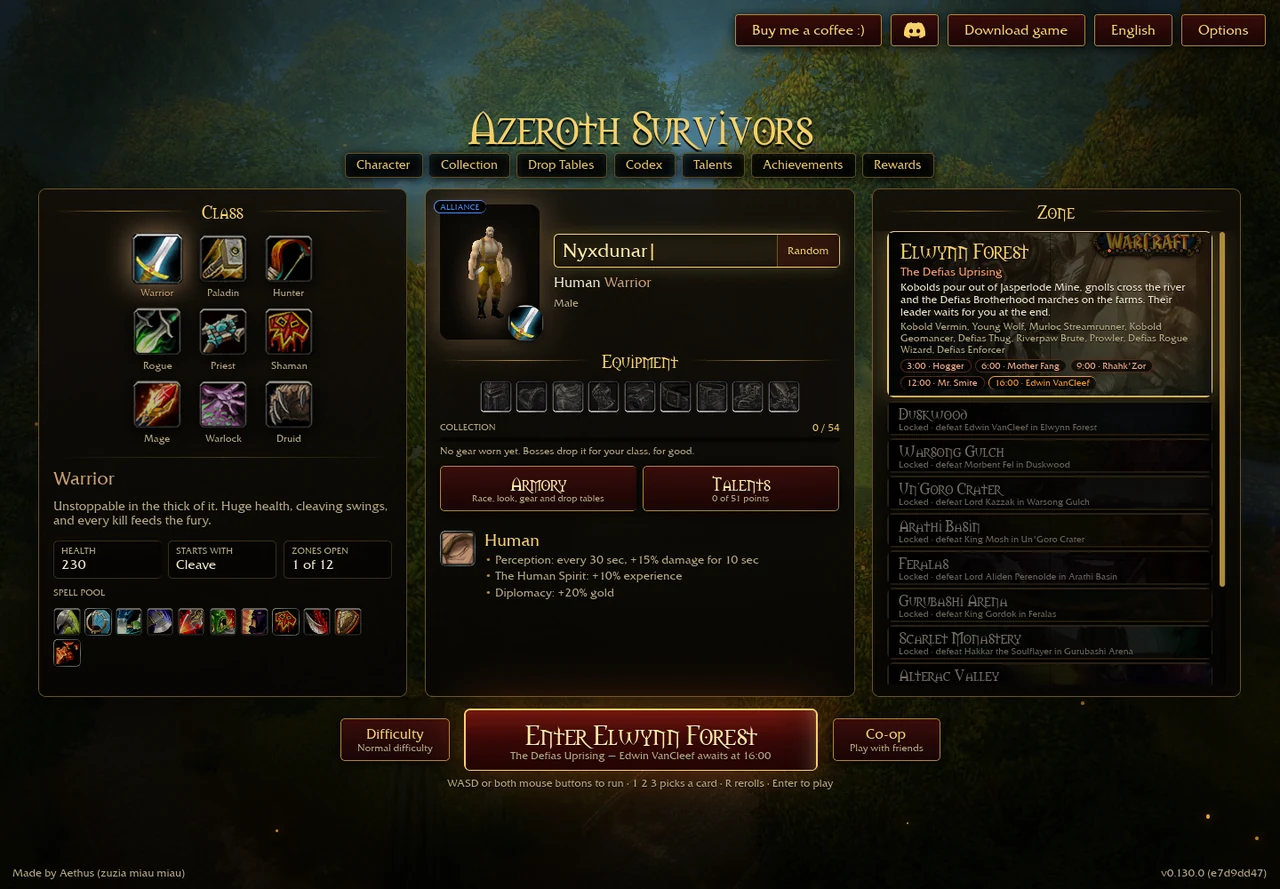
- Choose your hero and inspect the class, selected talents and starting spell. A developed character may start with a different spell from a new one.
- Start the run with Enter. Move to leave room around the hero, collect experience and read the offered upgrade’s effect before selecting it.
- When the run ends, inspect permanent progress and prepare the next attempt. Export a save before changing browser, device or host.
The controls you need first
| Input | Action | Decision it supports |
|---|---|---|
| WASD or both mouse buttons | Move | Leave a route out of the approaching pack. |
| 1 / 2 / 3 | Choose an offered card | Read the actual card; this is not a fixed shopping list. |
| R | Reroll the offer | Use when the present offer does not support the run; inspect the remaining rerolls in the client. |
| Enter | Play | The original picker’s quick-start prompt. |
| Escape | Pause/menu | Check Options and your current settings. |
These are the original picker and menu prompts, reviewed 29 October 2026. Use Options → Controls / Key Bindings for the current full binding list instead of importing keys from a different reconstruction.
Three decisions that should stay separate
| Decision | When to make it | What to compare |
|---|---|---|
| Run cards | During the level-up offer | The spell you currently use, the trigger it needs and the problem it solves now. |
| Permanent talents | Between runs | Prerequisites, opening-spell changes and the engine you can actually unlock. |
| Permanent equipment | Before comparing another run | Keep the starting investment similar; do not credit the entire difference to one card. |
Match a launch problem to the next step
If the game has not reached the hero picker, check WebGPU and adapter availability → or match the message you see →. The browser check does not test the game server. Keep your existing save before changing host or clearing storage.
| What you see | What to check | What this does not prove |
|---|---|---|
| Game-data download | Let the download progress; note whether the counter changes. | A black loading surface alone is not proof of a broken save. |
| No WebGPU warning | Use a current Chrome, Edge or Safari and check GPU availability. The launcher also suggests a Linux Chrome WebGPU flag. | A browser version alone does not guarantee a usable GPU adapter. |
| Too many people are playing | Use the original page’s Windows download or original community link; a quota is not fixed by changing class. | The hidden warning text in HTML is not evidence the server is currently full. |
| Different progress | Return to the previous browser/profile/origin, then export before migrating. | A new host does not automatically inherit old storage. |
Controller settings: check input before a long run
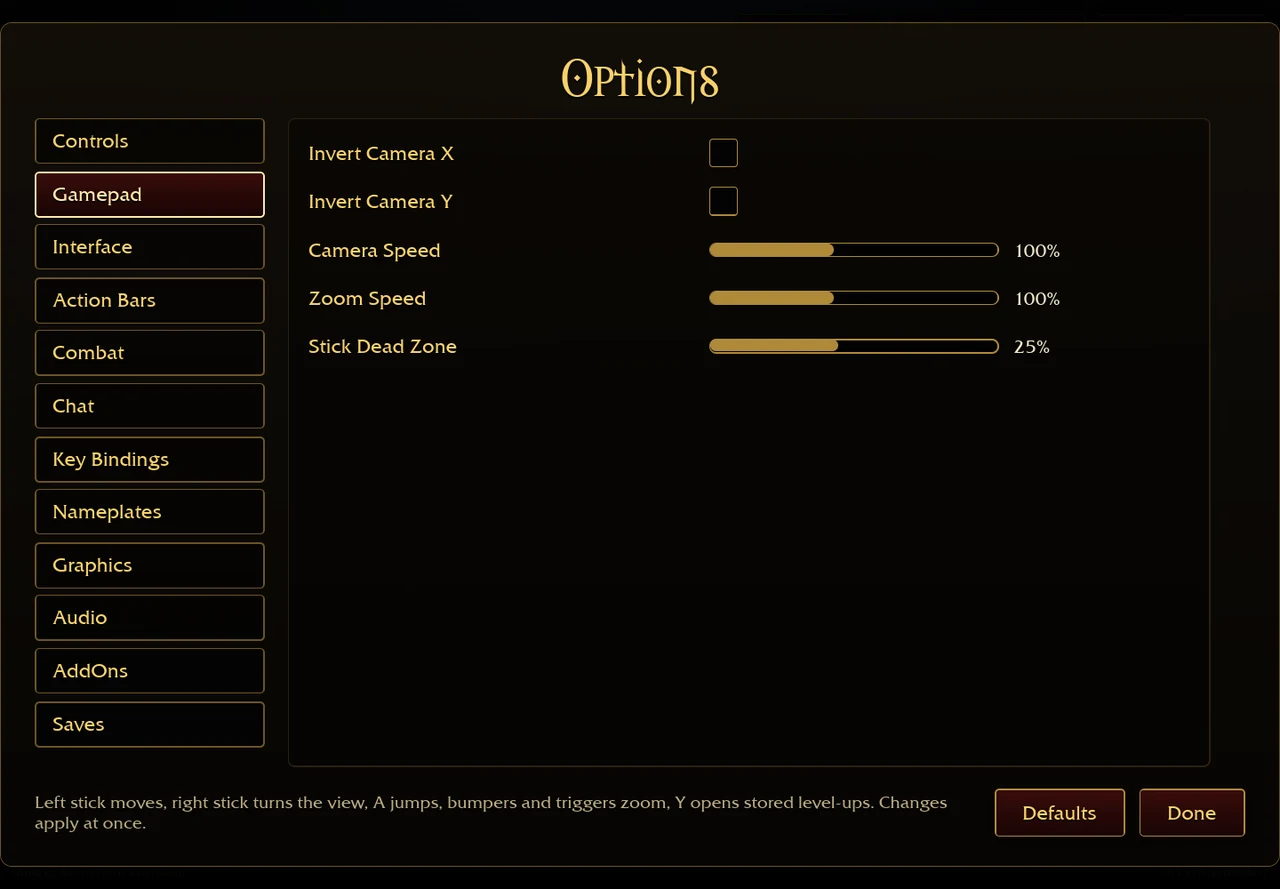
Open Options → Gamepad. The original v0.130.0 menu inspected on 30 October 2026 shows camera inversion, camera speed, zoom speed and stick dead zone. Its on-screen hint maps the left stick to movement, right stick to the view, A to jump, bumpers/triggers to zoom and Y to stored level-ups. This is menu evidence, not a controller compatibility test.
- Confirm movement and camera input in a short attempt before importing your only save.
- If the camera direction feels wrong, change the corresponding inversion setting.
- If the stick drifts, adjust the dead zone and check again; do not assume the displayed default suits every controller.
- Keep a keyboard or other working input available until you have checked menus and upgrade selection.
A Steam Deck report does not establish that every controller or browser exposes the same inputs. Read the Steam Deck evidence boundary →
Gear will not upgrade: marks, stars or the wrong item?
For permanent gear, open the Armory from the hero picker, choose the class and inspect the piece in Collection. Use the piece’s displayed Upgrade control and cost rather than a price from another class or version. The following decision order is based on original v0.127.0 interface text inspected 29 October 2026; it has not been replayed in v0.130.0.
| What you see | What to check next |
|---|---|
| Nothing worn adds bonuses | Find class gear from the bosses shown for the piece; starting clothes are not upgraded boss gear. |
| LOOK rather than equipped gear | Right-click equips/unequips; Shift+Right-click chooses the appearance. A look alone adds no gear bonus. |
| Not enough marks | Compare that class’s marks with the cost displayed on this piece. Do not substitute gold or a cost from another item. |
| Stars locked | Read the required Heroic level and zones on the piece. The text directs a first unlock to Heroic I in its zones; marks alone do not bypass that condition. |
| Fully upgraded | Choose another piece or improve another constraint; this is not a failed payment. |
Make one change, then inspect the worn piece and bonuses before spending more. Four pieces of one set require at least one star each for its four-piece bonus; the eight-piece bonus requires all eight at three stars or above in this inspected version. This is a progression check, not a best-in-slot or farming-rate claim.
Camera distance and controller zoom
The current v0.130.0 Controls text names Max Camera Distance and describes how far the camera may follow behind you. This is a distance limit, not a verified numerical field-of-view setting. The Gamepad panel separately supplies Zoom Speed; bumpers and triggers zoom. If the view is hard to manage, compare distance, follow style and camera speed separately instead of treating them as the same setting.
Open Options → Controls and scroll to the camera controls, then inspect Options → Gamepad for controller settings. We inspected these labels and panels but did not validate a mouse-wheel mapping or physical-controller behaviour; use the current Key Bindings screen to confirm your own binding.
Sources & checks
- Aethus · original game ↗ (external website, opens in a new tab) · Controls and first-run menus, v0.127.0–0.130.0, 29–30 Oct 2026.
- Aethus · browser launcher ↗ (external website, opens in a new tab) · Original-host, WebGPU and startup checks, 29 Oct 2026.